Help › Adding dictionaries
Adding dictionaries
RealDict ships with no dictionaries. Open the files you own, or download openly licensed ones from inside the app.
Supported formats
| Format | File extensions | Notes |
|---|---|---|
| StarDict | .ifo .idx .idx.gz .dict .dict.dz .syn | .syn is a synonym list |
| Lingvo DSL | .dsl .dsl.dz | Including annotations and media |
| MDict | .mdx .mdd | v1.x and 2.x, unencrypted. .mdd holds resources |
| Hunspell | .aff .dic | For word forms |
If a dictionary includes recordings, they play in the main window and the popup. Files such as mp3 and wav play; .spx and .ogg can’t be played yet.
Get dictionaries
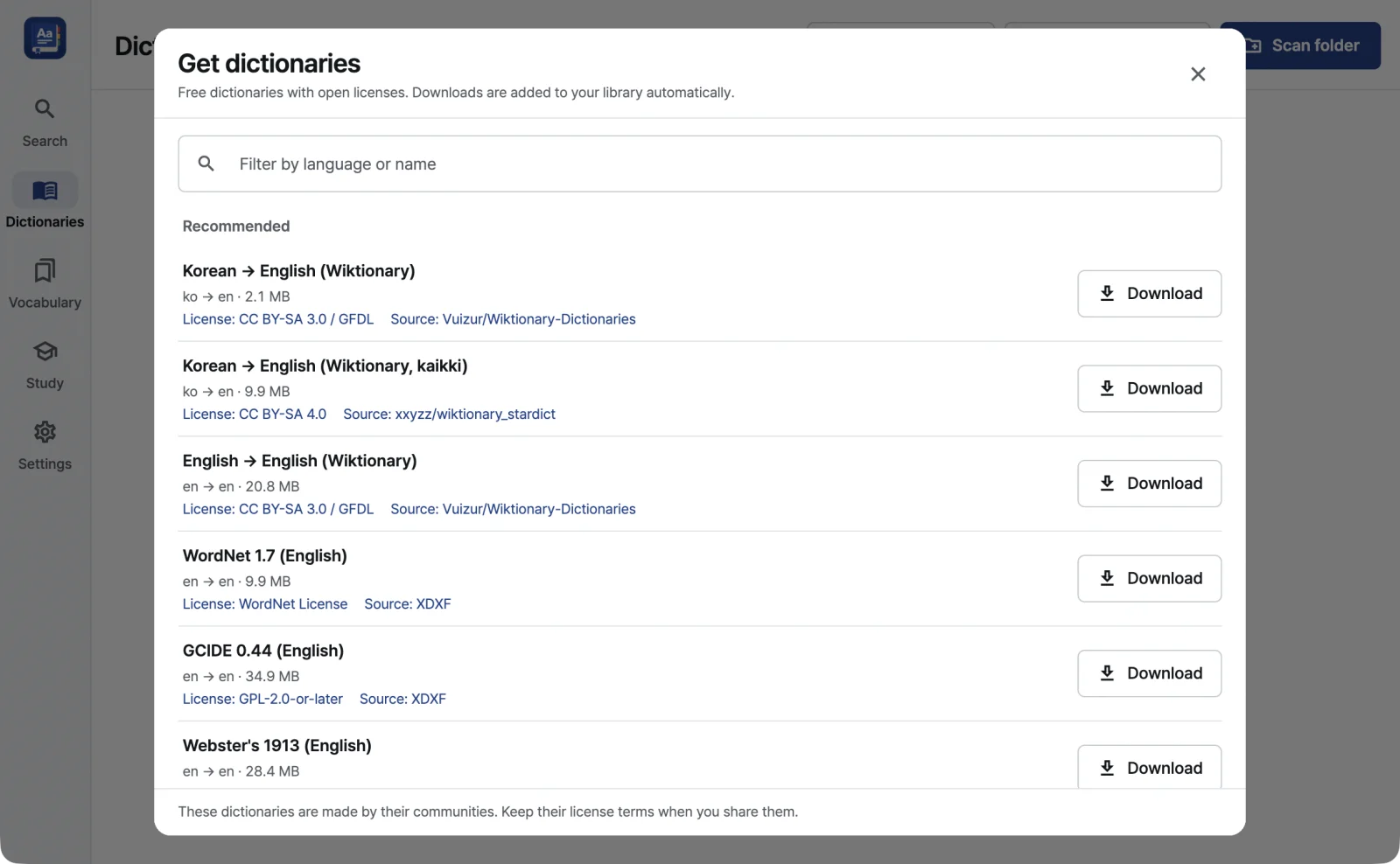
Get dictionaries downloads free, openly licensed dictionaries in one click. Each one is added to your dictionary list as soon as it arrives.
- Curated picks: Wiktionary-based dictionaries, WordNet, GCIDE and more
- FreeDict: the full list
- Hunspell word-form packs: 14 of them, used to find the base form of inflected words
- Basic Korean Dictionary: Korean → English, plus English → Korean, a reverse index that finds Korean words through their English definitions. Converted by RealDict from data released under CC BY-SA 2.0 KR. Source: National Institute of Korean Language, Basic Korean Dictionary (CC BY-SA 2.0 KR)
You can filter by language or name, and every entry shows its languages, size, license and source. Where a checksum is published, the download is verified against it. If you share a dictionary, follow its license.
New editions
When a dictionary you downloaded through Get dictionaries has a newer edition, the dictionary list shows “New edition available” with an Update button. Updating downloads and verifies the new edition, and the old one is kept until verification is done.
Adding files and folders
- Add a file: pick a single dictionary file.
- Scan a folder: pick a folder and RealDict adds the dictionaries in it and in every subfolder.
- Drag and drop: drop files, folders or archives (.zip, .tar.gz, .bz2, .xz, .zst) onto the window.
Dropping a part file such as .idx, .dict.dz or .mdd finds its matching main file.
Order and profiles
- Drag dictionaries to set the order results appear in.
- Removing a dictionary from the list never deletes its files.
- Keep several sets of dictionaries as profiles, with a separate order for main search and the popup.
- Turn on “Show dictionaries for the typed language first” to reorder by what you type: Hangul shows Korean dictionaries first, and Latin letters show English and similar dictionaries first.
The first time you add one
RealDict builds an index in the background and keeps it, so the dictionary opens quickly the next time. DSL and MDict dictionaries read their indexes straight from disk instead of loading them into memory, so they use less memory.
Full-text search
Besides headwords, you can search the words inside definitions. Full-text search is turned on per dictionary.
- In the Dictionaries screen, turn on full-text search for a dictionary. RealDict builds a full-text index on disk, about 22% of the dictionary’s text size.
- In the search field, switch from Headwords to Definitions.
- Type your words and press Enter.
- Words match by prefix: “house” also finds “houses”.
- With several words, only entries that contain all of them are shown.
- Up to 100 results are shown.
Chinese and Japanese text written without spaces isn’t searched well. Exact-phrase search and relevance ranking aren’t available yet.
Not supported yet
- Encrypted MDict files and the MDict 3.0 format
- Importing XDXF or BGL
- Regex search